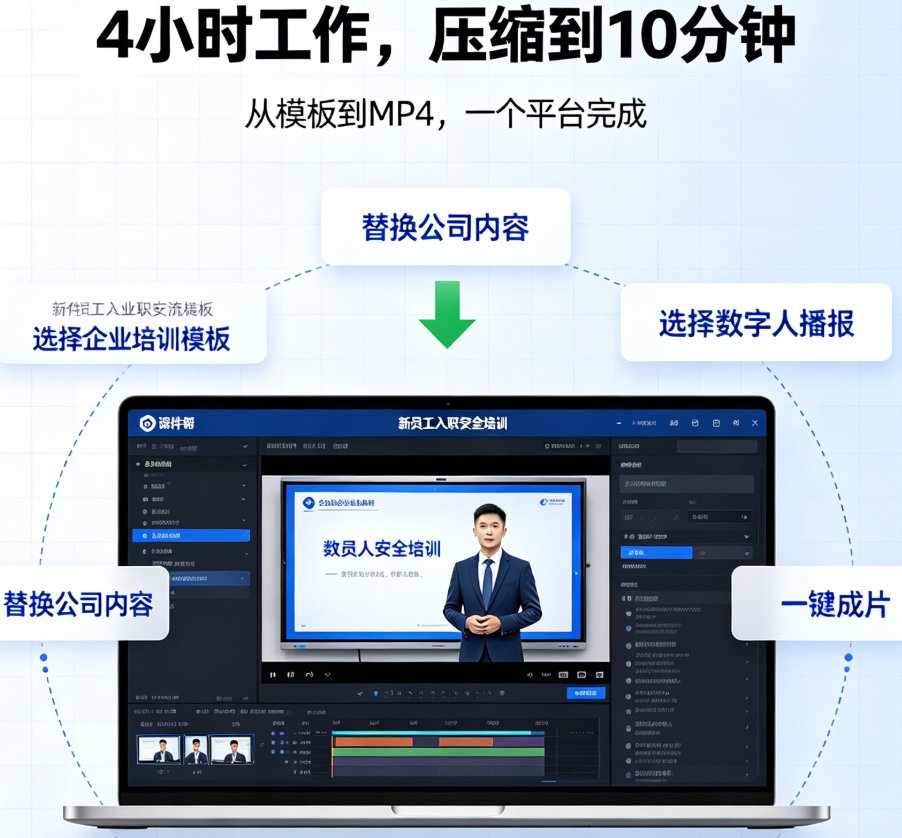
How to Turn Your PPT into a Narrated Video with Zendeck's AI Voiceover
01. The Problem: You Need Video, But You Don't Have a Studio
Let’s be real — creating a narrated video from a PowerPoint slide deck used to be a pain. You’d fire up a screen recorder, fumble with a microphone, try to get the timing right, and then spend another hour editing out the "umms" and background noise. If you’re an educator or trainer, you don’t have that kind of time. You need to get your course content out fast, and your students need to watch it on their own schedule.
The old workflow is broken. Recording voiceover separately, syncing it with slides, and exporting a video takes at least 45 minutes for a 10-slide deck — and that’s if everything goes smoothly. For a full training module, you’re looking at half a day.
But here’s the good news: AI-powered tools like Zendeck have turned this into a 5-minute job. No recording equipment, no audio editing, no stress. You just upload your PPT, and Zendeck’s AI voiceover reads your slides aloud in a natural, human-like voice. The result is a polished, narratted video ready to share.
[Insert screenshot here: Zendeck interface showing the "Upload PPT" button and voice selection panel]
02. How Zendeck’s AI Voiceover Works: The 4-Step Process
Zendeck’s PPT-to-video tool is designed for anyone who can drag and drop. Here’s the exact process:
Step 1: Upload Your PowerPoint (or Outline)
You can import a .pptx, .pdf, or even a Word outline. Zendeck reads every slide’s text, images, and presenter notes. If you have speaker notes, the AI will use them as the primary script. Otherwise, it extracts the on-slide text.
Step 2: Choose Your AI Voice
Pick from a library of voices — male, female, different accents, and languages. You can preview each voice in seconds. Pro tip: For educational content, a neutral, clear voice works best. Avoid overly dramatic tones unless you’re making a marketing video.
Step 3: Customize the Narration
You can edit the script per slide, adjust the speaking speed, and even add pauses. Zendeck’s AI matches the narration to the slide timing, so you don’t have to manually align anything.
Step 4: Generate and Export
Click "Generate Video." Zendeck processes your slides and produces an MP4 file. You can download it directly or share a link. The whole process — from upload to download — takes under 5 minutes for a standard 20-slide deck.
That’s a 90% time savings compared to manual recording.

03. Why Educators and Trainers Are Switching to AI Voiceover
Let’s look at a real scenario. Sarah, a high school biology teacher, needs to create a 15-minute lesson on photosynthesis for her remote students. She has a slide deck she uses in class. Instead of recording herself speaking over the slides, she uploads the PPT to Zendeck, selects a female English voice, and generates the video. The AI even adds natural pauses between slides. Sarah then shares the link in her school’s LMS. Total time: 4 minutes.
The outcome: Students can watch the narrated video at their own pace, rewind confusing parts, and Sarah saves hours each week. She reuses the same deck next semester with minor updates.
For corporate trainers, the benefit is even bigger. A typical product training module might have 50 slides. Recording that manually means blocking out an hour of your day, praying you don’t stumble, and then re-recording if you do. With Zendeck, you generate the video in one take — and you can update a single slide without re-recording the whole thing.
Key takeaway: AI voiceover turns static slides into living, accessible content that works for any audience.
04. Zendeck vs. Traditional Methods: A Feature Comparison
To help you decide, here’s a quick comparison of Zendeck’s PPT-to-video with AI voiceover versus the traditional manual approach:
| Feature | Zendeck AI Voiceover | Manual Recording (Screen + Mic) |
|---|---|---|
| Time for 20-slide video | 5 minutes | 45 minutes to 1 hour |
| Equipment needed | None (web browser) | Microphone, screen recorder, editing software |
| Voice quality | Professional, noise-free, consistent | Depends on mic and environment; often has background noise |
| Revisions | Re-generate in seconds; edit script per slide | Must re-record entire segment or edit audio manually |
| Language options | 10+ languages with multiple accents | Limited to your own voice |
| Collaboration | Share link, team can edit online | Send raw files, version control issues |
| Cost | Included in Zendeck subscription | Additional software costs (e.g., Camtasia, Audacity) |
The table above makes it clear: Zendeck eliminates the friction points that kill productivity. Educators and trainers don’t need to be audio engineers — they need to teach.
05. Pro Tips: Get the Best Narration Results
You’re not just converting a PPT; you’re creating a learning experience. Here are a few tricks I’ve learned from using Zendeck with training teams:
-
Write speaker notes, not slide bullets. Zendeck uses notes as the primary script. Write full sentences that flow naturally. For example, instead of "Photosynthesis: light + CO2 → glucose," write "During photosynthesis, plants use light energy and carbon dioxide to produce glucose." The AI voiceover sounds much more human.
-
Break up long slides. If a slide has 15 bullet points, the AI will read them all. But learners will check out. Split that into two or three slides with one key idea each. The video becomes more digestible.
-
Add visual cues for the AI. Use slide notes to indicate tone. For example, write "[pause for 2 seconds]" or "[emphasize this point]" in the notes where you want the AI to adjust. Zendeck’s speech engine respects these markers.
-
Preview before generating the full video. Always click the preview button for each slide. You can tweak the voice speed or rephrase a sentence before the final export. Saves time vs. re-exporting.
Watch out: Don’t use all-caps or excessive punctuation in your notes. The AI may read them literally, which sounds robotic. Keep it natural.
06. Beyond Voiceover: What Else Can Zendeck Do for Your Videos?
Zendeck isn’t just a voiceover machine. The same platform that turns your PPT into a narrated video also helps you:
- Import from Word outlines to create slides and then a video with one workflow. Check out our guide on From Word Outlines to Video.
- Use the asset library to find icons, charts, and illustrations that match your brand — no more searching through stock sites. See Zendeck's Asset Library.
- Collaborate in real time with your team on the same presentation, then convert to video instantly. Learn more about real-time collaboration.
- Secure your micro-courses with sharing settings that prevent unauthorized downloads. Read about secure sharing.
The point is: Zendeck is a full content creation ecosystem. The PPT-to-video feature is just one piece of the puzzle — but it’s the piece that saves you the most time.
07. Real-World Use Cases (So You Can Imagine It in Action)
Case 1: Flipped Classroom for College Biology Dr. Lee records his lectures on slides. He uploads a 30-slide deck on cell division to Zendeck, selects an AI voice with a calm tone, and generates a 12-minute video. He assigns it as pre-class homework. Class time is now used for discussion, not lecture. Students report higher engagement and better exam scores.
Case 2: Product Training for a SaaS Company A customer success manager needs to onboard new clients. She creates a 40-slide deck covering features, then converts it to a video with Zendeck. She adds a custom voiceover in Spanish for Latin American clients. The video is shared via a link that can be tracked. Onboarding time drops from 2 hours to 30 minutes.
Case 3: Compliance Training for a Hospital The HR team has a mandatory annual compliance deck. Instead of hosting live sessions, they convert the PPT to a video with AI narration. Employees watch it on their own time, and the LMS records completion. The hospital saves 200 hours of instructor time per year.
These aren’t hypotheticals — they’re real outcomes from Zendeck users. The common thread: they all needed a narrated video fast, and they got it without a studio.
08. Common Questions (and Straight Answers)
Q: Does the AI voice sound robotic? Not anymore. Zendeck uses neural text-to-speech that sounds like a real person. You can adjust the speaking rate and add natural pauses. Try a preview — most people can’t tell it’s AI.
Q: Can I add my own background music? Yes. Zendeck allows you to upload an audio track or choose from its library of royalty-free music. The voiceover volume adjusts automatically so it’s always clear.
Q: What if I have a slide with a complex diagram? Zendeck keeps the image intact. The AI only narrates the text or notes. You can also add a text description of the diagram in the notes so the AI explains it.
Q: Is there a limit on slide count? No. You can convert decks of any size, though very long videos (over 60 minutes) may take longer to process. The platform handles 100+ slides without issues.
09. Ready to Try It? Here’s Your Next Step
You don’t need to be a tech wizard or own a microphone. You just need a PowerPoint and 5 minutes. Zendeck’s PPT-to-video tool with AI voiceover is available within the platform. Sign up, upload your first deck, and see the difference.
Remember: every minute you spend recording manually is a minute you could spend refining your content, connecting with your audience, or taking a break. Let AI handle the narration.
If you’re still using screen recorders and microphones, give Zendeck a try. You’ll wonder why you didn’t switch sooner.
FAQ
Q: Do I need a microphone or recording studio to use Zendeck's AI voiceover? A: No. Zendeck generates the narration entirely from text using AI voice synthesis. You only need to upload your PPT or paste your script. The tool handles all audio production.
Q: Can I edit the voiceover after it's generated? A: Yes. You can re-generate the narration with different voices, adjust the speed, or change the language. You can also edit the slide text and re-run the voiceover without starting over.
Q: How long does it take to convert a 20-slide PPT into a video? A: Typically 2–5 minutes, depending on slide complexity and video length. Zendeck processes each slide sequentially and generates the MP4 quickly.
Q: Does Zendeck support multiple languages for voiceover? A: Yes. Zendeck offers AI voices in English, Spanish, Mandarin, French, and more. You can set a different language per slide or keep one consistent.
Q: Can I add my own recorded audio alongside the AI voice? A: Yes. Zendeck allows you to import your own audio files or record directly in the tool. You can mix AI voiceover with your own narration for a hybrid approach.