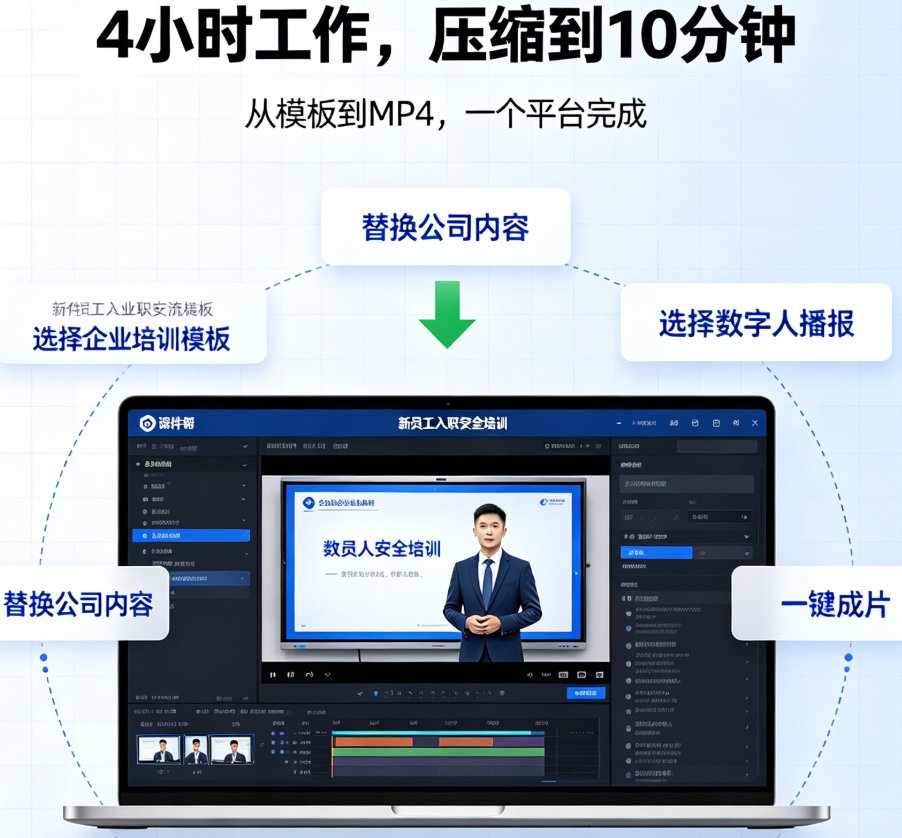
2026 PPT-to-Video Trend: How Zendeck Automates Narration and Micro-Course Creation from Slides
The 2026 Shift: Why Static PPTs Are Becoming Obsolete
Let's be real: if you're still standing in front of a room clicking through slides, or worse, recording your screen and hoping the audio syncs, you're already behind. In 2026, the expectation isn't just a presentation—it's a narrated, animated micro-course that learners can watch on their own time. The trend is clear: static slides are out, dynamic video content is in.
But here's the pain point that every educator and trainer knows: creating a video from PowerPoint traditionally takes hours. You have to record audio, edit out mistakes, sync animations, add captions, and then render. The result? A lot of time for a single course. That's where Zendeck's AI-powered PPT-to-video feature changes the game.
01. The Real Cost of 'Traditional' Video Production
Before we dive into the solution, let's look at the numbers. A typical 30-slide deck takes about 2 hours to turn into a video using screen recording and manual editing—if you know what you're doing. For most non-designers, it's closer to 4 hours. And that's before you even think about localization, updates, or version control.
The result? Outdated content, low engagement, and a bottleneck in your training pipeline.
[Insert screenshot here: Side-by-side comparison of a messy screen recording workflow vs. Zendeck's clean interface]
Now compare that to Zendeck's automated workflow: upload a PPTX, let the AI parse your slides, generate a script, and produce a narrated video with smart animations. The entire process takes 5 minutes for a 30-slide deck. The chart below shows the dramatic time savings.
02. How Zendeck Understands Your Slides (Not Just Records Them)
Most screen recording tools treat your slides like a video of a photo album—they capture the surface but miss the meaning. Zendeck's AI is different. It reads the text hierarchy, interprets bullet points, grabs data from charts, and even uses your speaker notes to build a coherent narrative. The result is a voiceover that actually explains the content, not just reads it aloud.
Here's a quick comparison of features:
| Feature | Screen Recording | Zendeck AI | Why It Matters |
|---|---|---|---|
| Narration generation | You record manually | AI generates from slide content | Saves hours of recording time |
| Animation sync | Manual timing | Automatic, context-aware | No more awkward pauses |
| Subtitles / captions | Manual or auto (often inaccurate) | AI-generated, perfectly synced | Accessibility & comprehension |
| Slide understanding | None (just captures pixels) | Parses text, notes, charts | Context-aware narration |
| Export time | 30-60 min for 30 slides | 2-3 minutes rendering | Faster iteration |
The bottom line: Zendeck doesn't just convert your PPT to video—it transforms it into a learning asset.
03. The 5-Minute Workflow: From PPTX to Micro-Course
Let's walk through the actual process. Based on the latest 2026 workflow benchmarks, here's how Zendeck gets you from a PowerPoint file to a narrated video in under 5 minutes for a typical 30-slide deck.
Step 1: Upload Your PowerPoint
Drag and drop your PPTX file (up to 100MB) into Zendeck. The AI engine parses your slide structure, including title hierarchy, bullet points, embedded charts, and images. Pro tip: Make sure your text is editable (not embedded in images) and that speaker notes are present—the AI uses them to enhance the narration script.
Step 2: AI Generates Script and Visuals
Within 30-60 seconds, Zendeck produces a narration script from your slide content and speaker notes. It also re-renders your bullet points, tables, and diagrams as animated motion boxes—not just static screenshots. This is what makes the final video feel professional, not like a screen recording of someone clicking through slides.
Step 3: Edit the Script (Optional)
You can review and tweak the AI-generated script. Want to add a personal anecdote or adjust the tone? Just edit the text. The narration will update automatically.
Step 4: Customize Branding
One-click reskin applies your brand fonts, colors, and logo. This ensures consistency across all your courses—a must for educators and corporate trainers.
Step 5: Export Video
Hit export. The video renders in 1-2 minutes. You get an MP4 or WebM file with synced subtitles, ready to upload to your LMS, YouTube, or share via a link.
04. Real Results: What Educators and Trainers Are Saying
The numbers speak for themselves. A training manager using Zendeck reported cutting slide creation time by 70% (see full case study). Another university professor turned lecture notes into visual slides in minutes (read their story).
Consider this: a 50-slide deck can become a 12-minute video course in about 8 minutes total processing time. That's a 90% reduction in production time compared to traditional methods. And because the video is generated from the slides, updates are just a re-export away—no need to re-record audio.
Quick tip: For courses that need frequent updates, use Zendeck's collaboration feature to let multiple team members edit the script and slides in real time. Then, one-click re-export the video. No more stale training materials.
05. Why Zendeck Leads the 2026 PPT-to-Video Trend
The future of workplace learning is video. But creating that video shouldn't require a production studio. Zendeck bridges the gap between static slides and engaging micro-courses by automating the most time-consuming parts: narration, animation, and captioning.
Compared to other tools like Gamma or Microsoft PowerPoint, Zendeck offers a dedicated PPT-to-video pipeline that understands slide content, not just formats. It's built for educators and trainers who need to create professional, shareable video content without hiring a video editor.
- No design skills required – Zendeck's smart layout and template library handle the aesthetics.
- No recording studio – AI voices sound natural and support multiple accents.
- No more manual sync – Subtitle and animation timing is automatic.
If you're ready to move from static PPTs to dynamic video courses, start with Zendeck's free trial. Upload one deck and see the difference in under 5 minutes.
[Insert screenshot here: Zendeck's export screen showing a completed video with download button]
FAQ
How does Zendeck's AI generate narration from my slides?
Zendeck parses your slide text, bullet points, and speaker notes to understand the content. It then generates a natural-sounding voiceover script, which you can edit before final export. The AI also matches the timing of animations to the narration.
Can I use Zendeck to convert old PowerPoints into video courses?
Yes. Zendeck's one-click conversion works with any PPTX file. Even speaker notes are preserved and used to enhance the narration script. This is ideal for revamping legacy training materials.
What video formats does Zendeck export?
Zendeck exports to MP4 and WebM, with options for 1080p or 720p resolution. The video includes your chosen AI voice, synchronized subtitles, and animated slide transitions.
Is Zendeck suitable for teams and collaboration?
Absolutely. Zendeck supports real-time collaboration, so multiple team members can edit the script, adjust animations, and review the video simultaneously. Link sharing makes it easy to distribute the final course.
How does Zendeck compare to screen recording tools?
Screen recording only captures your slide show—it doesn't add narration or smart animations. Zendeck's AI understands the content and creates a context-aware video with professional voiceover, captions, and visual effects, all in minutes.